
How to switch from activation to subscription
In the tariff flow shown in the screenshots, O-Key AI uses two stages:
- V1 / Activation — a one-time payment for connecting and setting up access.
- V2 / Subscription — a recurring payment for ongoing use of O-Key AI features.
The flow is: 1 - Activation → 2 - Subscription. In most cases, activation is paid first, and then the subscription step becomes available.
What the tariff page shows
Section titled “What the tariff page shows”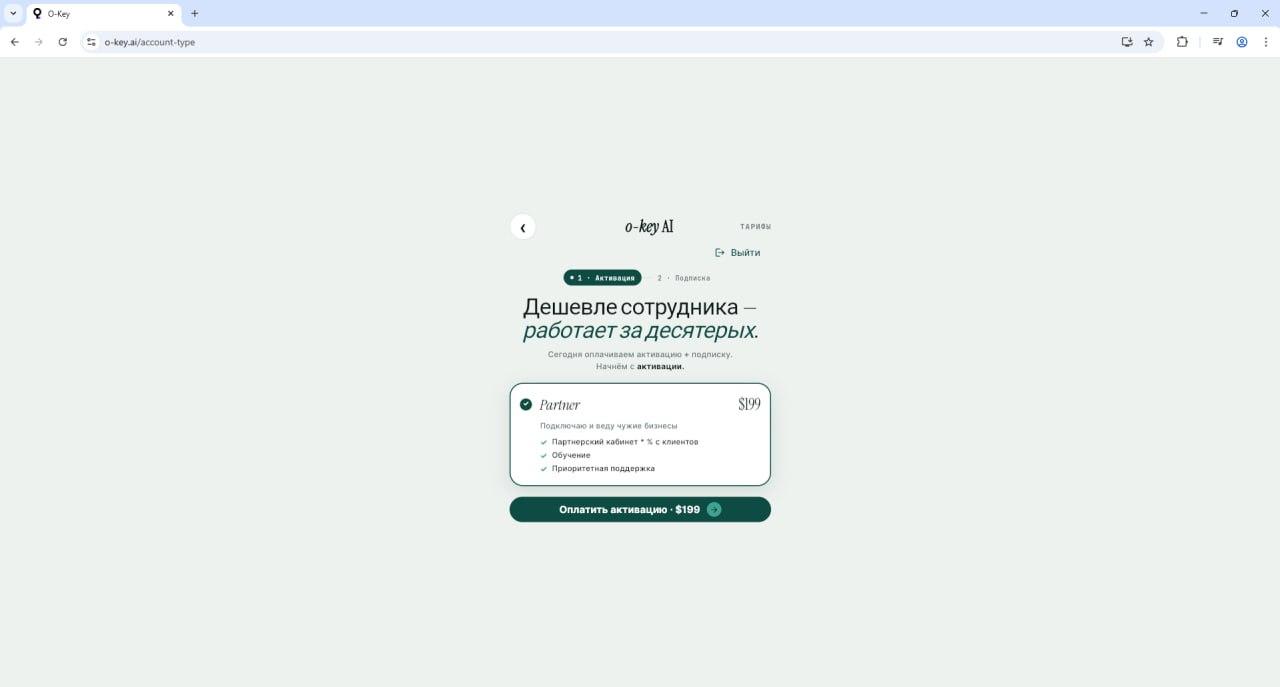
The page shows the Tariffs screen with two steps: 1 - Activation and 2 - Subscription. The example role is Partner, and the activation button shows Pay activation: $199.
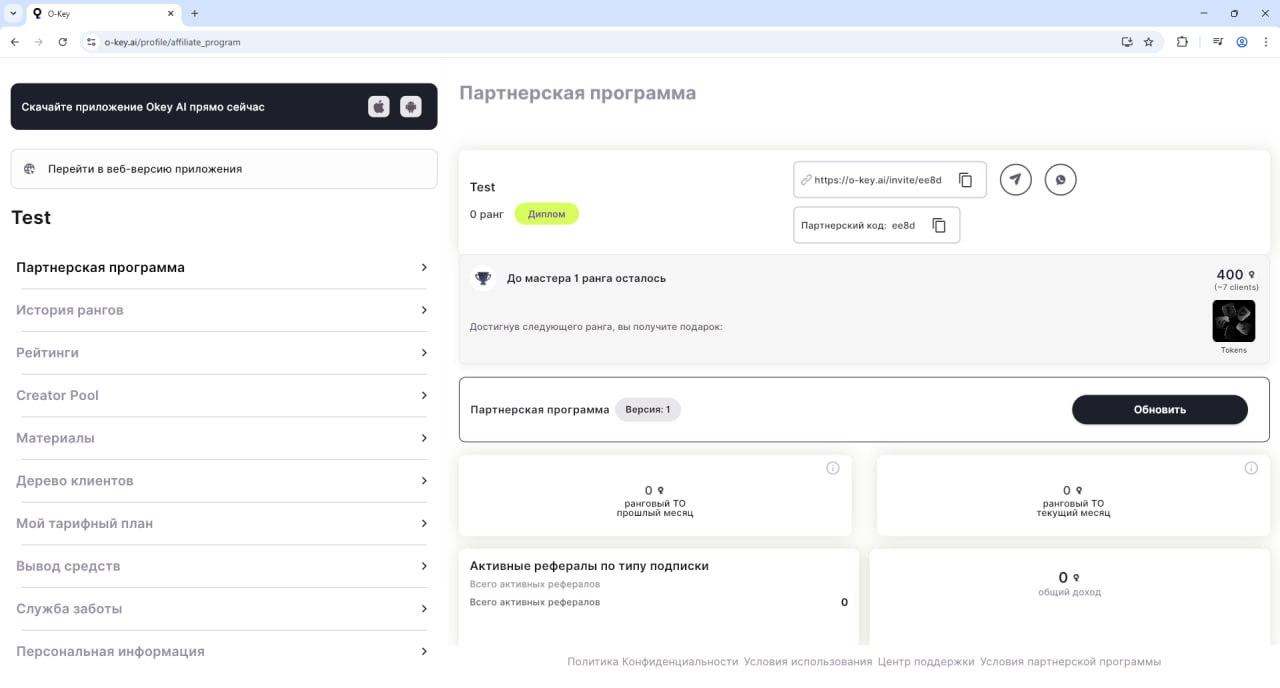
The partner dashboard can show referral program, ranks, income, and other account information. It does not always show the subscription button directly; return to Tariffs to continue.
Switch to subscription
Section titled “Switch to subscription”Step 1. Open Tariffs
Section titled “Step 1. Open Tariffs”Sign in to O-Key AI and open Tariffs. Confirm that you see the activation and subscription steps.
Step 2. Pay activation (V1)
Section titled “Step 2. Pay activation (V1)”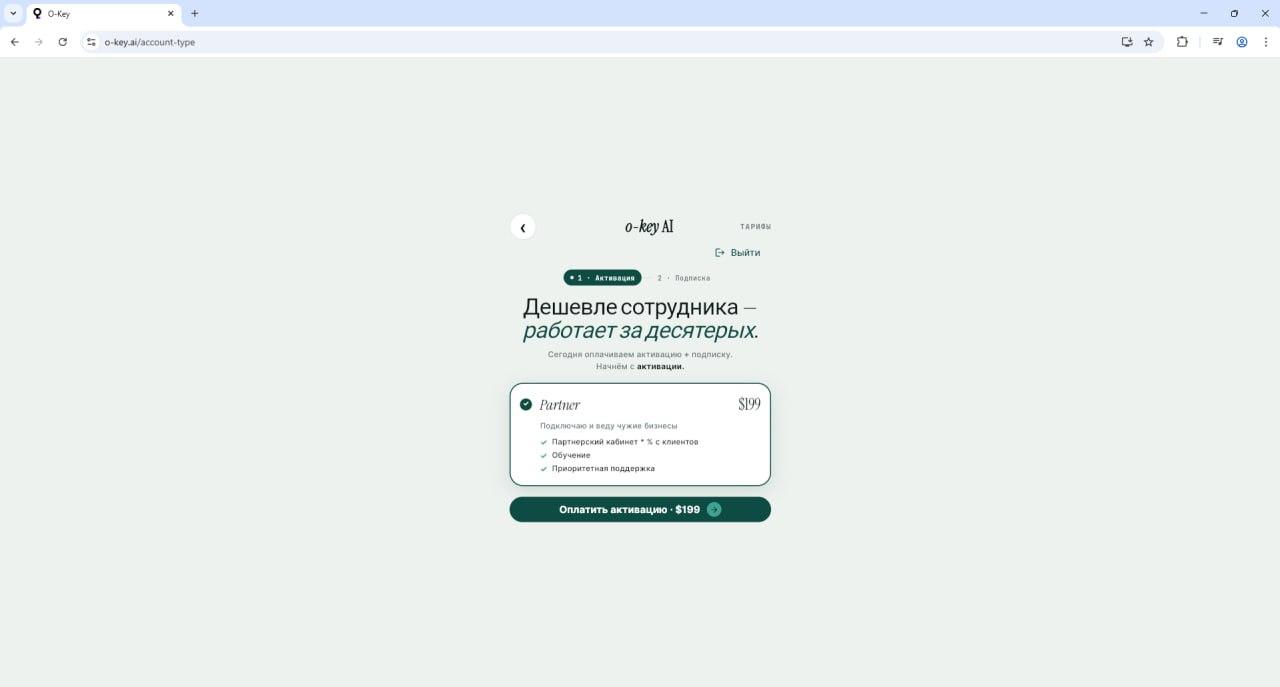
Choose your role, for example Partner, and click Pay activation: $199.
After payment, the system unlocks the base account access. Subscription is still a separate step.
Step 3. Open the subscription step
Section titled “Step 3. Open the subscription step”Return to Tariffs. After activation, step 1 should be marked as complete and step 2 should become available with a button such as Pay subscription or Connect subscription.
Step 4. Check subscription status
Section titled “Step 4. Check subscription status”After paying the subscription, open My tariff plan. You should see the active subscription status, next payment date, and available limits.
If the subscription button is missing
Section titled “If the subscription button is missing”| Problem | What to do |
|---|---|
| Activation is not paid | Check payment history. Subscription may be unavailable until activation is complete. |
| Activation is paid but subscription is not visible | Refresh the page, sign out and sign in again, or wait 5–10 minutes. |
| You only see the partner dashboard | Open the top or side menu and go back to Tariffs or Account settings. |
| Subscription requires support action | Contact support through Support service in the account menu. |
Do I have to pay activation before subscription?
Section titled “Do I have to pay activation before subscription?”Yes, in the flow shown here activation is the first required step.
Can I pay both at once?
Section titled “Can I pay both at once?”Usually they are separate steps. After activation, the subscription can normally be connected in a few clicks.
What does subscription add?
Section titled “What does subscription add?”Activation gives access setup. Subscription enables ongoing use of AI agents, channels, knowledge bases, and other features.
What if I do not pay the subscription?
Section titled “What if I do not pay the subscription?”Access can be limited or stopped after the trial or activation-only period ends.