
How to create an agent
An O-Key agent is an AI assistant that can talk to clients in Telegram, WhatsApp, website chat, and other channels. You configure the agent’s task, greeting, behavior instructions, and optional knowledge base. Channel connection and knowledge-base creation are covered in separate guides.
Open Agents
Section titled “Open Agents”Step 1. Sign in to O-Key CRM
Section titled “Step 1. Sign in to O-Key CRM”Open the CRM URL provided to you and sign in.
Step 2. Open Agents
Section titled “Step 2. Open Agents”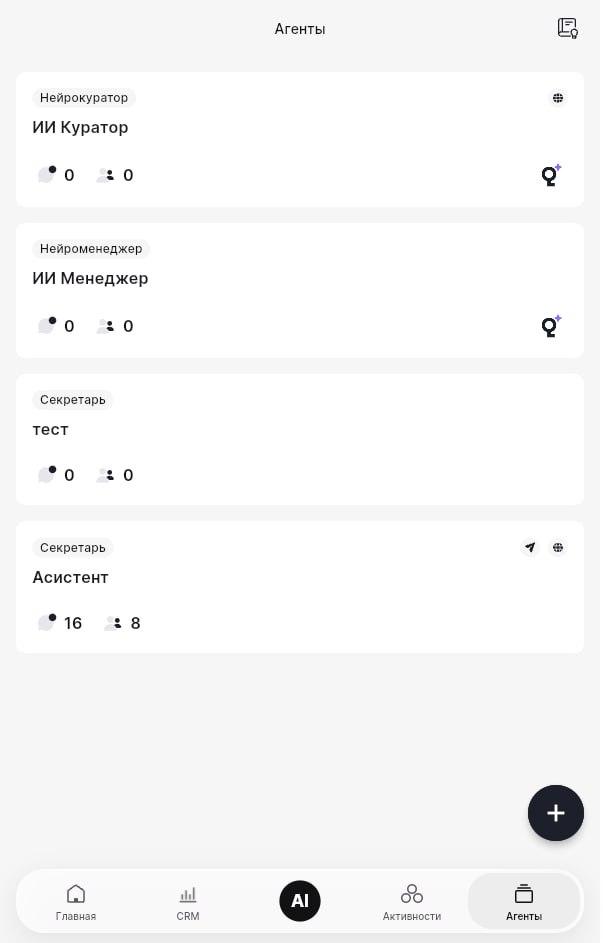
You should see the agent list. Existing rows can show agent names and numbers for active dialogs and plan limits.
Start creating an agent
Section titled “Start creating an agent”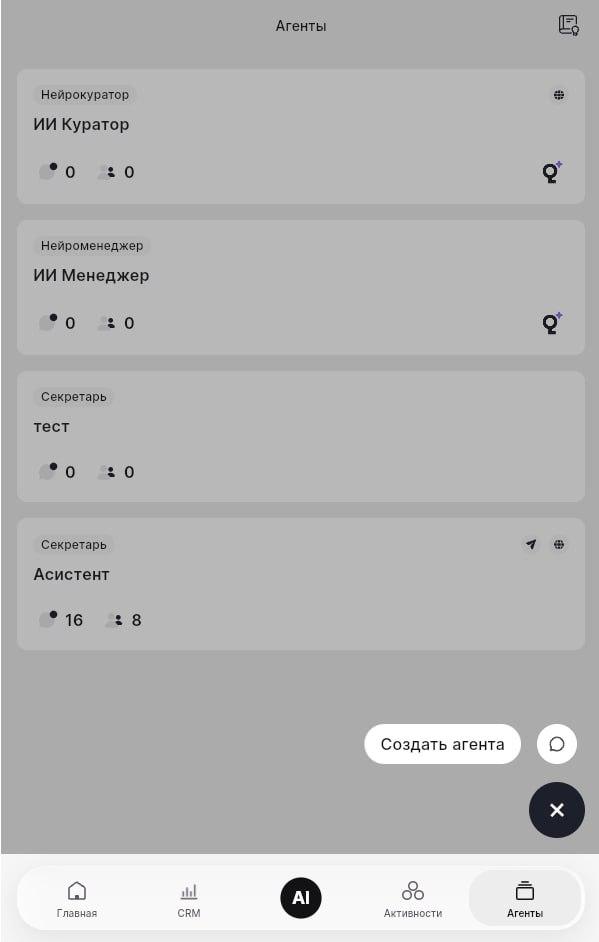
Step 3. Click Create agent
Section titled “Step 3. Click Create agent”The agent settings page opens.
Fill in the main settings
Section titled “Fill in the main settings”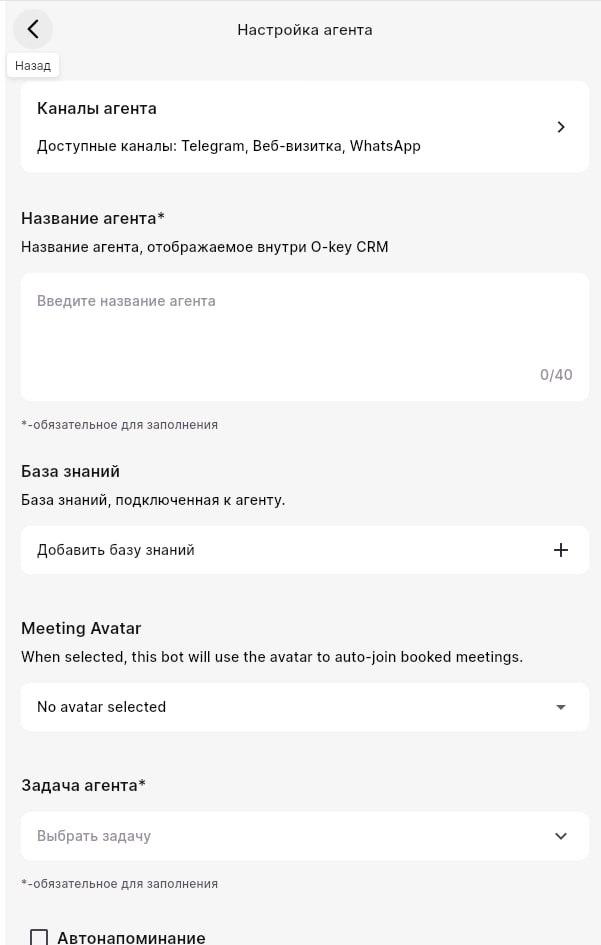
Channels
Section titled “Channels”The page shows available channels such as Telegram, website card, and WhatsApp. You can connect channels after the agent is created.
Agent name
Section titled “Agent name”This is the internal CRM name. Clients do not see it. Use a short and clear name, for example Order support assistant or Telegram sales assistant.
Knowledge base
Section titled “Knowledge base”If you already have a knowledge base, click Add knowledge base. If not, skip this step and connect it later.
Meeting Avatar
Section titled “Meeting Avatar”This is used for meeting-related scenarios and is usually not needed for chat bots.
Agent task
Section titled “Agent task”Select the main role of the agent, such as consulting, lead generation, support, sales, or FAQ. If you are unsure, choose consulting and adjust later.
✅ Fields marked with
*are required.
Configure reminders, greeting, and instructions
Section titled “Configure reminders, greeting, and instructions”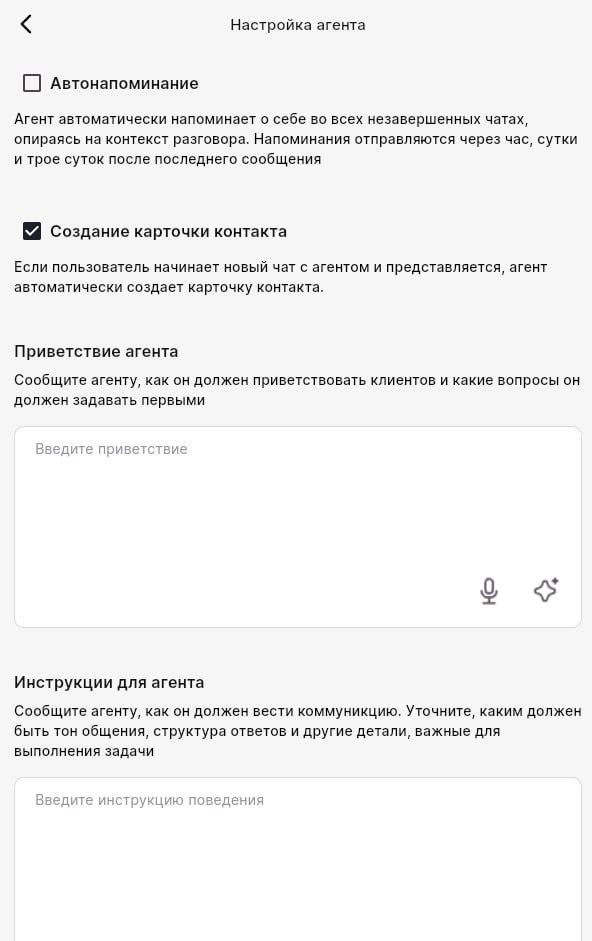
Auto reminder
Section titled “Auto reminder”When enabled, the agent reminds users in unfinished chats after configured intervals. This is useful when a client does not finish a conversation.
Contact card creation
Section titled “Contact card creation”When enabled, the agent can create a contact card when a new user starts a chat and introduces themselves. We usually recommend leaving this on.
Agent greeting
Section titled “Agent greeting”Write how the agent should greet the client and what it should ask first. Example:
Greet the client with: “Hello! I am the assistant for Company X. How can I help?” Then ask for the order number or question topic.Agent instructions
Section titled “Agent instructions”This is the most important field. Define tone, answer style, restrictions, escalation rules, and what the agent should never promise. Example:
Be polite and professional. Keep answers short. If you do not know the answer, say that you will pass the question to an operator. Do not promise discounts unless they are in the knowledge base.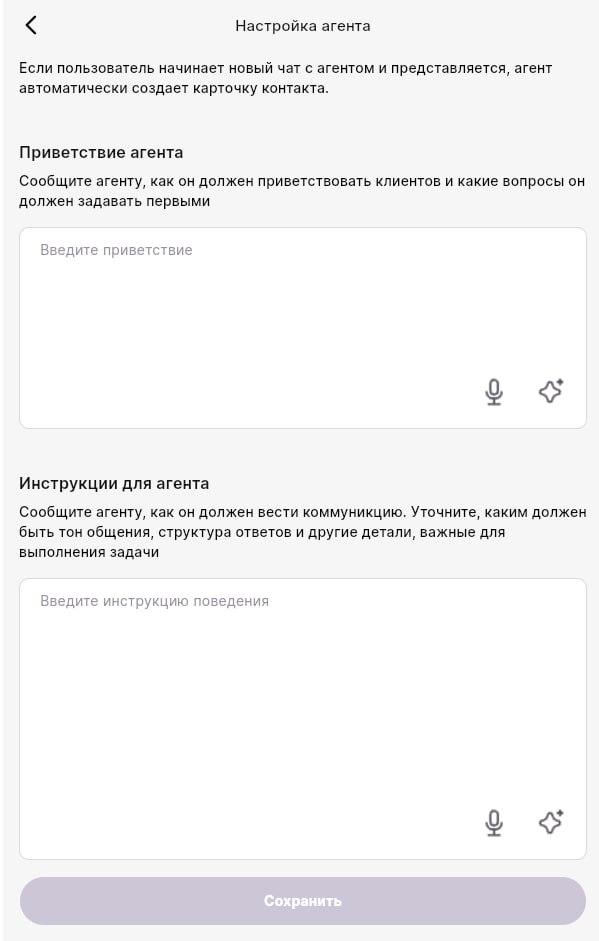
Step 5. Review all fields
Section titled “Step 5. Review all fields”Before saving, confirm that:
- the agent name is filled in;
- the agent task is selected;
- greeting and instructions are filled in;
- reminders and contact creation are set as you prefer.
Step 6. Click Save
Section titled “Step 6. Click Save”The new agent appears in the agent list.
What to do next
Section titled “What to do next”A saved agent still needs a communication channel and, ideally, a knowledge base. Next steps:
- Connect Telegram, WhatsApp, or another channel.
- Create and connect a knowledge base.
- Send a test message through the connected channel.
- Check that the dialog appears in CRM.
Can I edit the agent after saving?
Section titled “Can I edit the agent after saving?”Yes. Open Agents, click the agent name, update the settings, and click Save again.
Are greeting and instructions required?
Section titled “Are greeting and instructions required?”The agent may work without them, but quality will be low. Add at least a simple greeting and behavior instruction.
What if I do not know what to write in instructions?
Section titled “What if I do not know what to write in instructions?”Start with this template:
You are a polite and friendly consultant. Answer briefly and clearly. If the question is outside your scope, say that you can only help with orders. Do not ask for personal information except name and order number.The agent was saved, but I do not see it
Section titled “The agent was saved, but I do not see it”Refresh the page and check whether any filters are active. New agents may appear at the bottom of the list.